
A Gantt chart that lives in your Google Sheet
Ganttmatic schedules your roadmap from effort, dependencies and who is actually available, and it keeps every row in the spreadsheet you already own. No account, no server, no second copy.
Works in Google Sheets on the web · Needs edit access to the spreadsheet
[to confirm: Marketplace listing link, added once the listing is published]
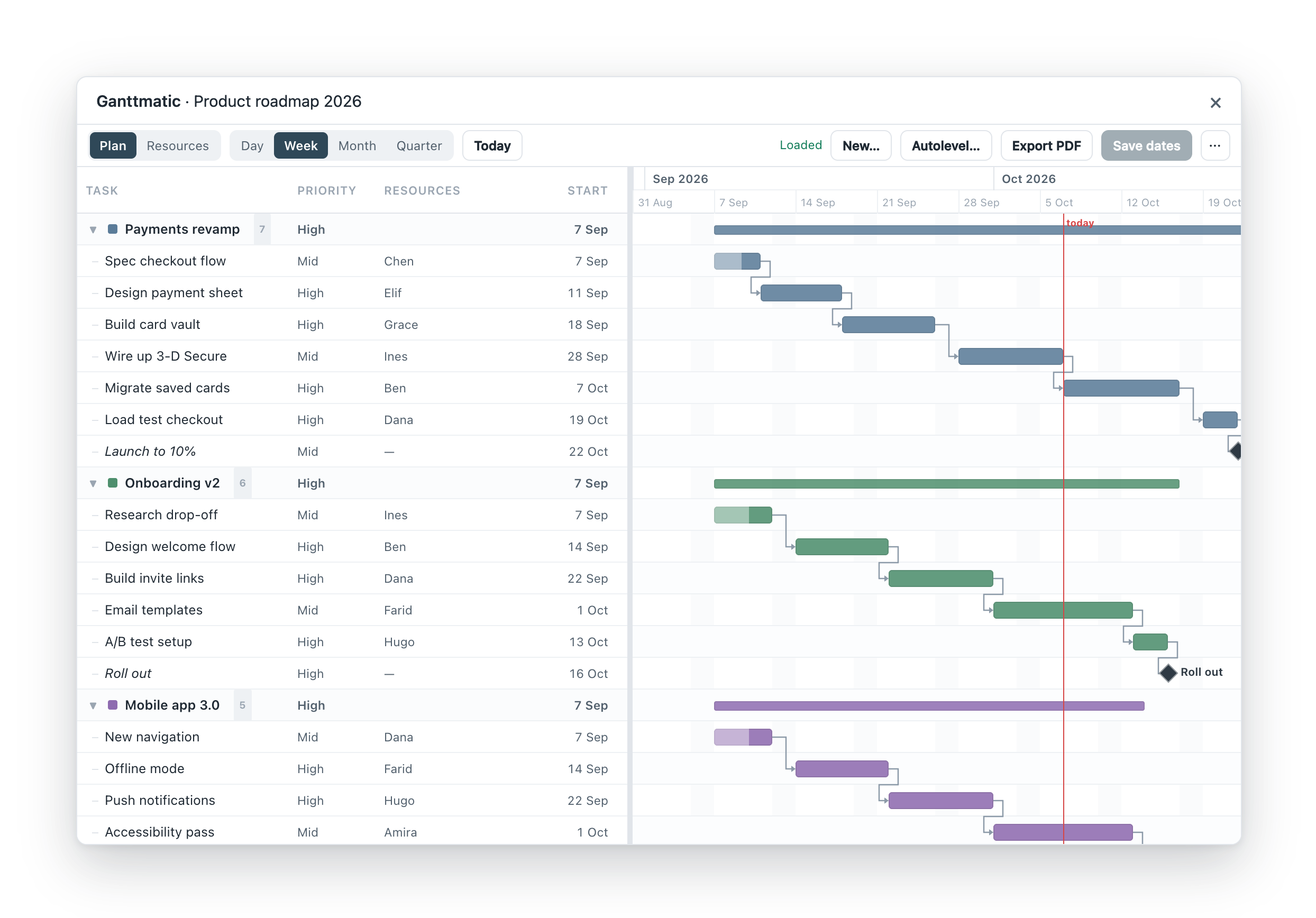
Your plan is a spreadsheet. That’s the point.
Six tabs in your Google Sheet are the whole database. Ganttmatic reads and writes them directly, working as you.
Nothing leaves your sheet
There’s no Ganttmatic server and no copy of your plan anywhere else. If you delete the tabs, the plan is gone. If you share the sheet, the plan is shared.
Durations you don’t have to type
Give a task its effort and its people. Ganttmatic works out how long it takes, including time off and part-time allocations.
See it before it saves
Autolevel shows you what would move, and by how much, before anything changes. Dates only reach the sheet when you click Save dates.
Set up in two steps
You don’t need a template, a sign-up or a script.
Install Ganttmatic
Install it from the Google Workspace Marketplace [to confirm: listing link] and approve the two permissions it asks for (what they mean). On a work or school account, your administrator may need to allow it first.
Open a spreadsheet and start Ganttmatic
- Open any Google Sheet you can edit. A blank one is fine: sheets.new.
- Choose Extensions › Ganttmatic › Open Gantt.
- Ganttmatic offers to set the sheet up. Click Set up roadmap. It adds six tabs, each with a header row: If the sheet already has other tabs, they’re left exactly as they are.
- Your empty plan opens. Add your first initiative and go.
Everyday tasks, done the Sheets way
Ganttmatic always works on the spreadsheet you have open. Creating, copying and finding roadmaps is done by Google Sheets itself.
| To… | Do this |
|---|---|
| Start a new roadmap | Create a blank spreadsheet (File › New › Spreadsheet, or sheets.new), then Extensions › Ganttmatic › Open Gantt and Set up roadmap. |
| Duplicate a roadmap | File › Make a copy in Sheets. The copy has its own six tabs. Open Ganttmatic in the copy. |
| Switch to another roadmap | Open that spreadsheet (File › Open or Google Drive), then Open Gantt there. |
| Share with your team | Use the Sheets Share button. Anyone with edit access can open Ganttmatic. People with view-only access can’t use add-ons, so send them a PDF (Export PDF in Ganttmatic). |
| Undo a change | File › Version history in Sheets. Every Ganttmatic edit is an ordinary edit to your sheet. |
| Remove Ganttmatic from a sheet | Delete the six tabs. Nothing else was added. |
What Ganttmatic can access
It asks for two permissions. It asks for no Google Drive permission of any kind.
- See and edit only the spreadsheets you use Ganttmatic in
- That means the sheet you have open when you choose Open Gantt, and nothing else in your Drive. Ganttmatic reads and writes only its six tabs.
- Show its window inside Google Sheets
- That’s the Ganttmatic menu and the Gantt window itself.
Ganttmatic remembers which columns you show and how wide the panes are in your own browser, so your view settings stay on your computer. Nothing else is stored anywhere. Read the privacy policy.